
Creating & Editing Pins
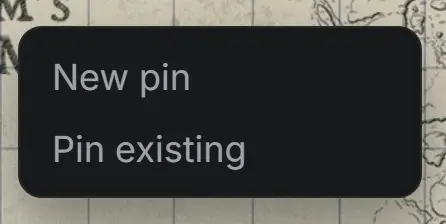
See the "Map Example" tab to see the various types of pins you can have on your pin. To create a pin, right-click on the image/map and select "New Pin" to create a pin with no link or to create a new page based on the pin.
Or click "Pin Existing" to create a pin for a page or tab you've already created. Start typing it into the field or scroll the list to find the page you want to link. From there you can edit the pin's appearance. You can also right-click on any pin to change it's appearance and what it is linked to.
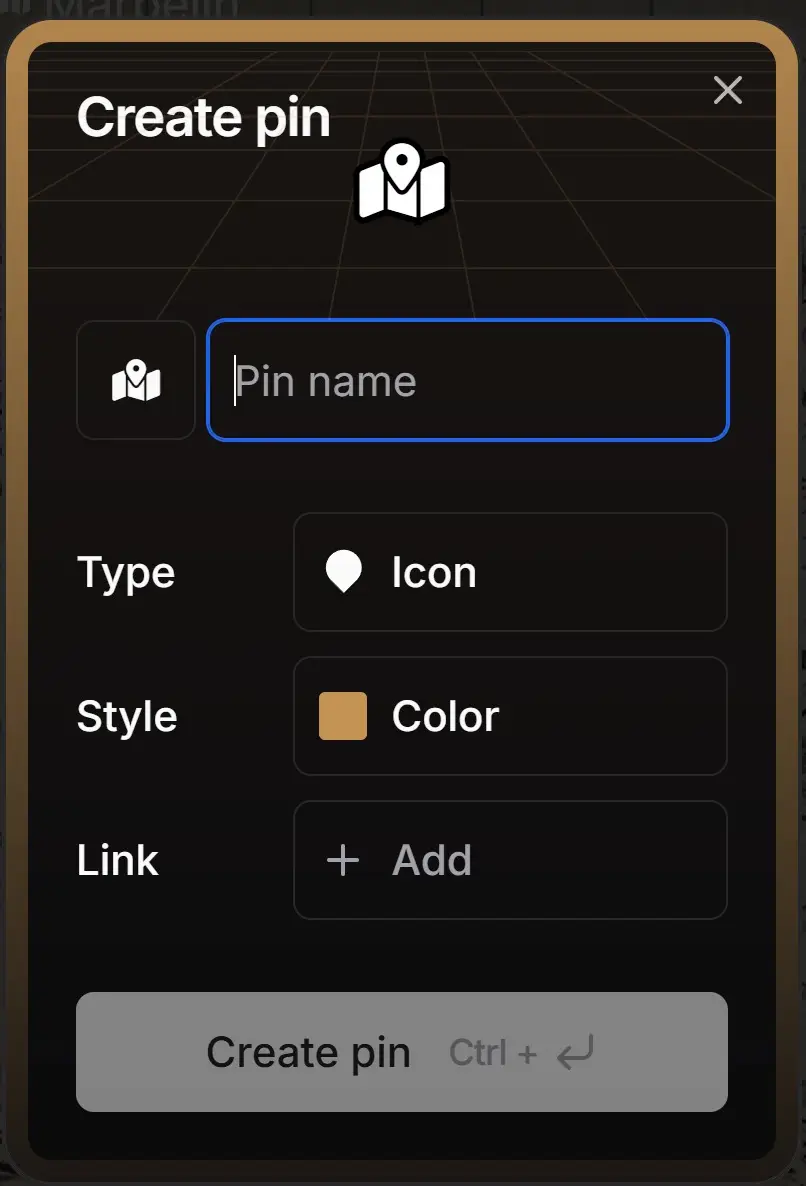
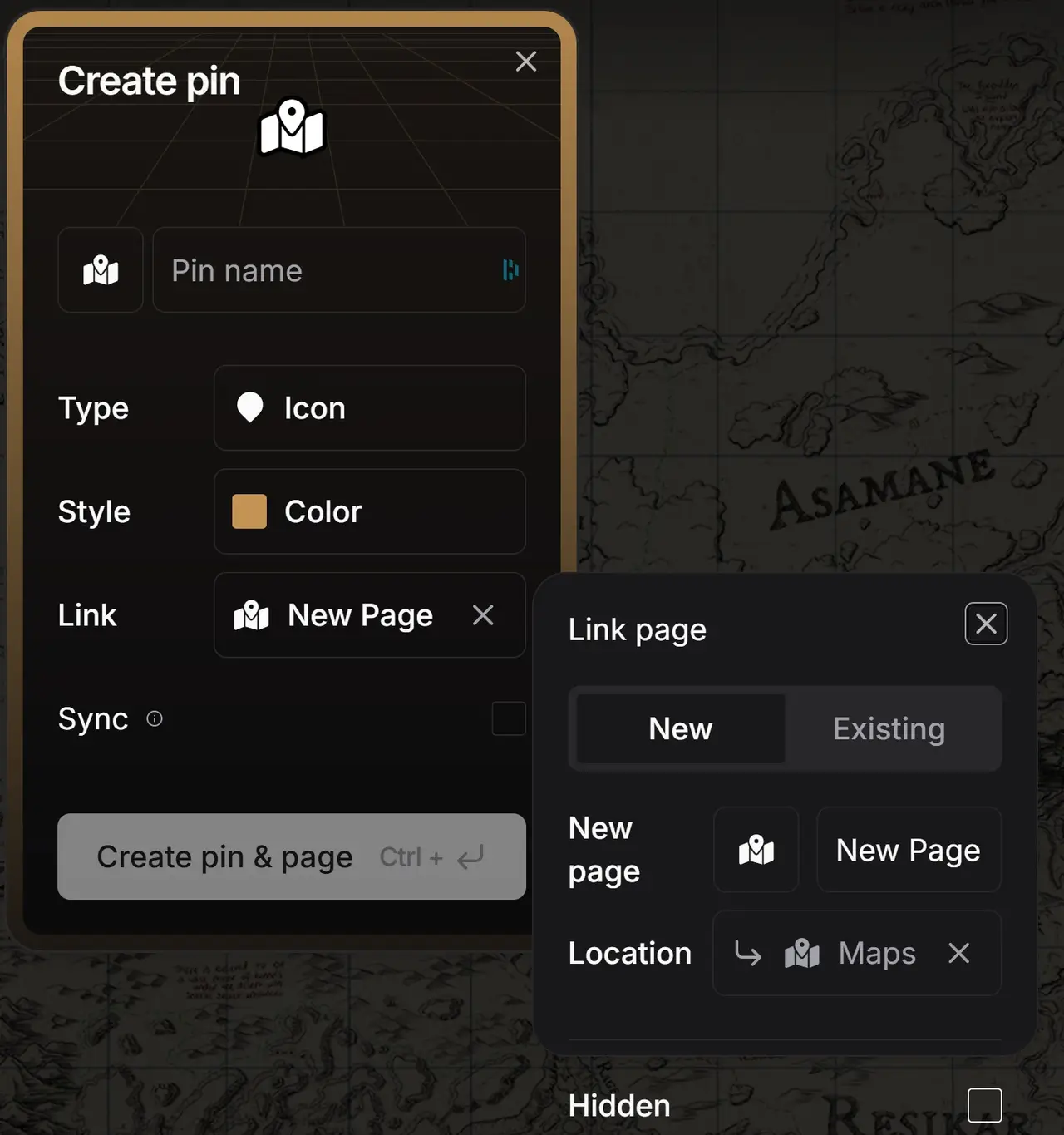
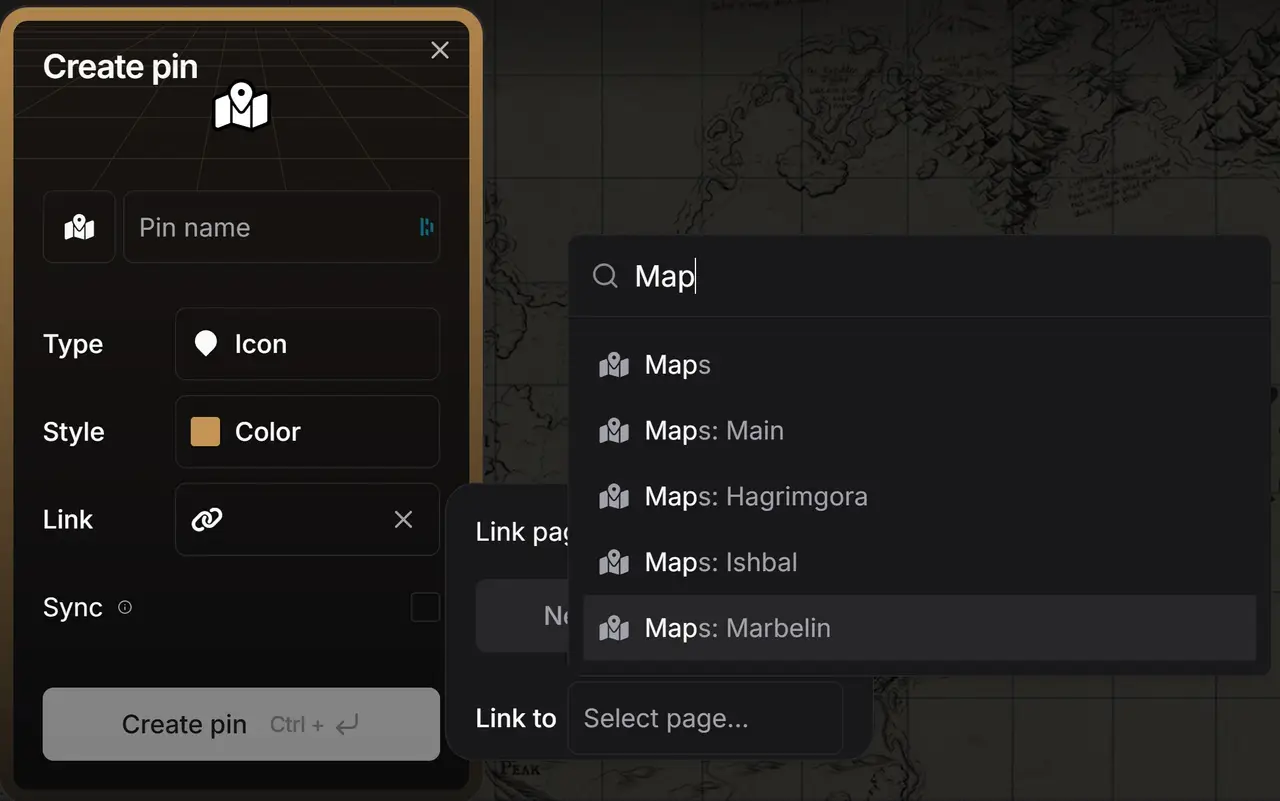
Pin Name: This can be any text, tab, map, or page. If you want the pin to be named something different than the page title, uncheck the "Sync" box when editing. If you leave it synced, whenever you edit the title of the page or tab, it will automatically update the pin label.
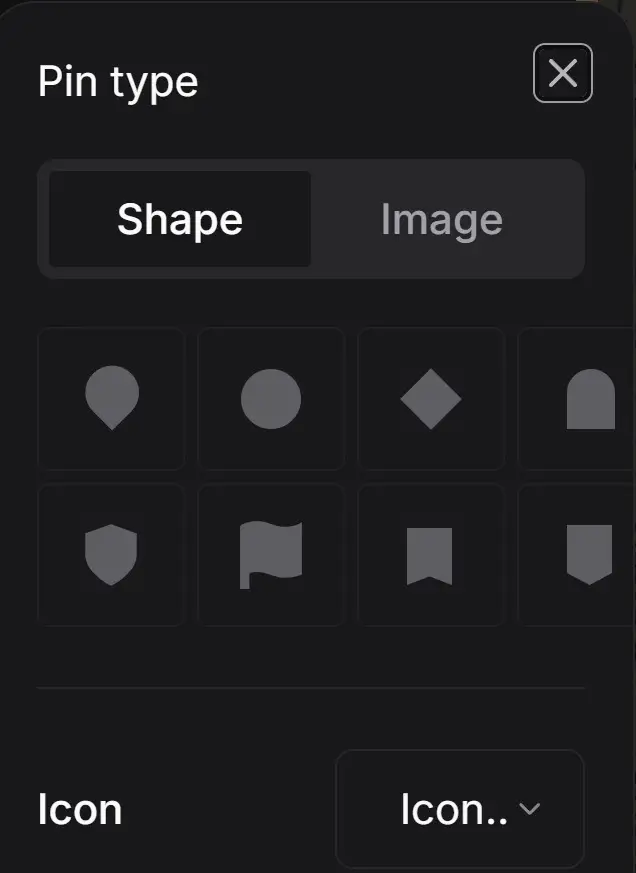
Type: Choose between showing just the icon, the icon in a shape, or just the shape.
Style: Choose any of the preexisting color choices or save your own. This color will be visible only on the shape if chosen. It will not change the color of the icon or emoji.